If it's stopped working...
If the video on this site was working last time you visited, it may be because my internet address has changed and you are looking at an earlier copy of the page stored in your browser's cache. I've tried to write the video pages to stop this happening but, unfortunately, all browsers behave differently.| If you think this may be the case, please refresh your browser now by holding down the Ctrl key while clicking on your browser's 'Refresh/Reload' button. Also, refresh the video page itself, in a similar way. |
Plugins & ActiveX controls.
All web browsers display webpages differently - sometimes markedly so. Although webpage designers attempt to make their pages display reasonably well in all browsers, sometimes a compromise is needed and, at the moment, designers tend to favour Internet Explorer, due to its current relative dominance of the browser market. One area in which these differences are particularly noticeable is Multimedia - especially streaming audio and video. We've all been to websites at which an audio or video clip won't play because we don't have the correct media player or plugin installed.The video on this website uses 'Windows streaming media' and needs Windows Media Player 9 (or later) to be installed. This player is native to Windows XP and can be downloaded and installed in all of the later Windows 32-bit operating systems. If you don't already have it installed and you are running a suitable Windows operating system, it can be downloaded here.
Once you have Windows Media Player installed, getting video to display in webpages depends which browser you use.
Chrome Browser
Chrome no longer allows the Windows Media Player to be installed. Although there's a workaround involving running Chrome in Developer's Mode, by far the simplest solution is to install the IE Tab extension from the Google Web Store.Click the ADD TO CHROME button and an IE Icon will appear in Chrome's Toolbar next to the Menu button at the top right. Click the icon to download a small exe file called Ietabhelper.exe and run the exe by double-clicking it; or right-click and select 'Run As Administrator'.
Now, when you visit any webpage that uses Windows Media Player and you see the yellow banner at the top of the screen: "This site uses a plug-in (application/xms-wmp) that is unsupported" click the IE Tab icon to open a new "IE Tab" and display the webpage complete with the Windows Media Player plug-in.
Internet Explorer
|
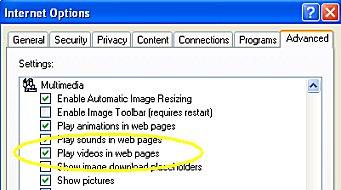
To play video in Internet Explorer, select Tools | Internet Options , scroll down to 'Multimedia'
and ensure that Play videos in web pages is checked. Internet Explorer will then display video in webpages - provided the page's designer wrote the page to work with Windows Media Player as an 'embedded' ActiveX control. |
Firefox
 (tm) (tm)
|
Firefox is an alternative to Internet Explorer for web browsing which is gaining in popularity. Based on the original web browser Mozilla,
the latest version of Firefox can be downloaded here and it addresses most (if not all) of the problems that have previously been associated with 'alternative' browsers. Additionally, it has some 'nice' features which I predict will ensure it will continue to make inroads into the browser market. |
When Windows Media Player is first installed, it automatically installs a suitable control provided it finds a plugins folder during the installation. Of course, if Firefox is installed after Windows Media Player, the folder will not be found (since it won't exist) and the control will not be installed. If the control is not installed, the simplest way is to uninstall and re-install Windows Media Player after Firefox is installed.
However, the default operation of Firefox is to not use the ActiveX control but to use the Netscape method of employing a plugin. If a webpage contains suitable code to use a plugin, Firefox will use it - if it has it - or download it from the Microsoft site, if it hasn't already got it.
As this website contains suitable code, it should now display video, using the plugin. However, some sites do not have the necessary 'code' on the webpage and will only run Windows Media Player in ActiveX mode, similar to Internet Explorer.
To use Firefox on these sites, a special ActiveX control is available at the Mozilla Knowledge-base website where you will also find full step-by-step instructions for downloading and installing the control and a more in-depth explanation of plugins, ActiveX and security issues when using ActiveX.
Firefox Plugins
Here are two plugins which I've found useful with Firefox:- IE Tab. Allows you to switch between an Internet Explorer page and a native Firefox page all within the Firefox browser. Useful for some pages that still won't display properly in Firefox.
- Media Player 11 plugin .
Do I have the plugin...?
To test whether you have the Windows Media Player plugin and/or the ActiveX control installed, click here -->

|
This test result in Firefox shows that both the ActiveX control and the plugin are installed so
this browser should display video from all websites which use Windows Media Player regardless of which
code the webpage designer used. If the webpage designer has included code for both ActiveX and a plugin, the ActiveX control will be used. |

|
This test result is from the same computer using Internet Explorer. Note that the plugin is ignored because Internet Explorer can only use the ActiveX control. |
This site and its contents are © Copyright 2005 - All Rights Reserved.